Adding User Profiles
The first step in checking the report is to access the “Settings” tab. In this tab, you can check the functions not related to the slide show, but only the verification of previously declared data, the creation of user profiles and general Horus Wall Enterprise settings.

When you click on “Settings”, you need to click on “User Profiles”. This function allows you to create profiles that cover permissions given to Users according to your preference, thus making it easier to create Users with the appropriate permissions.
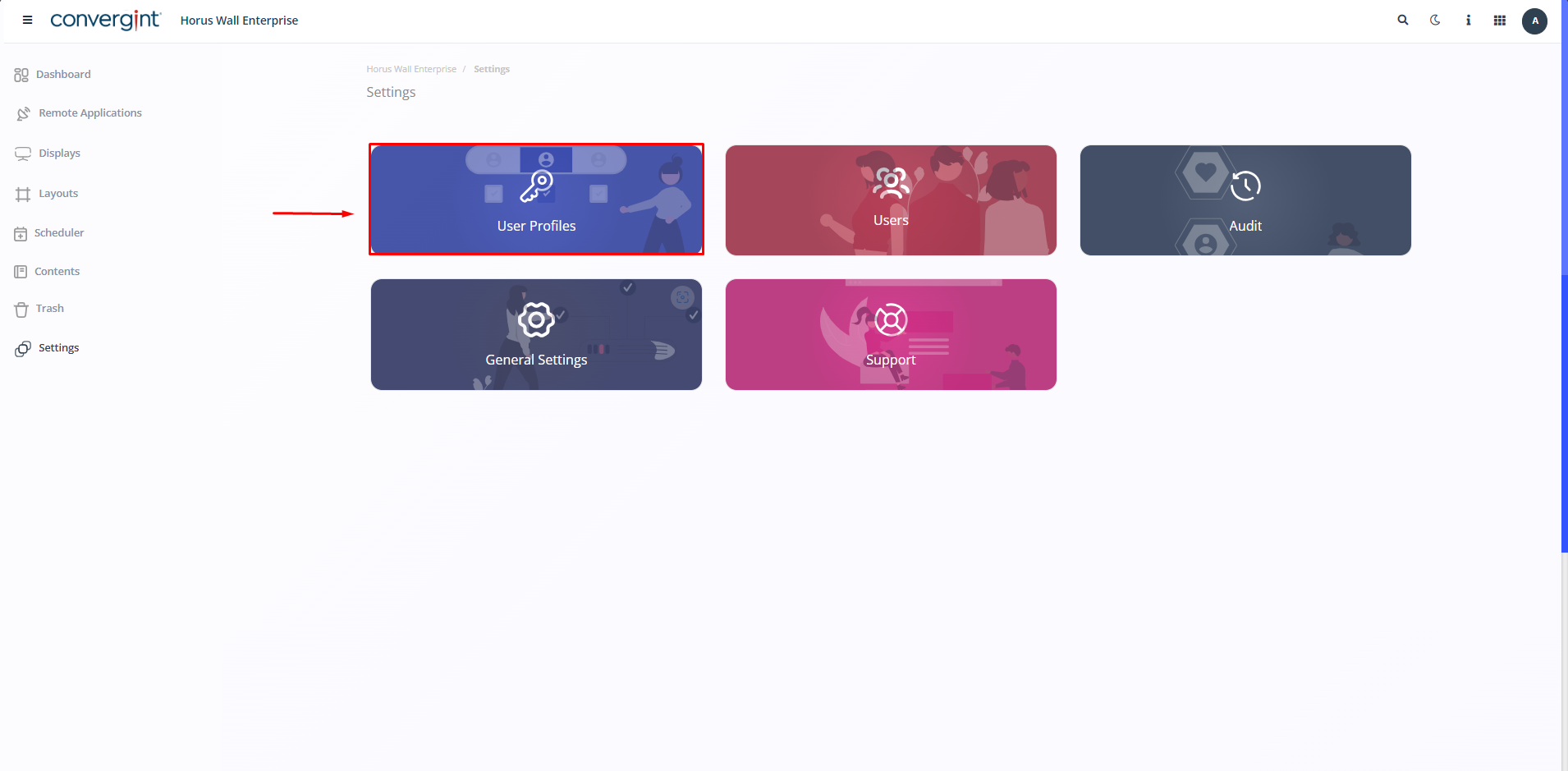
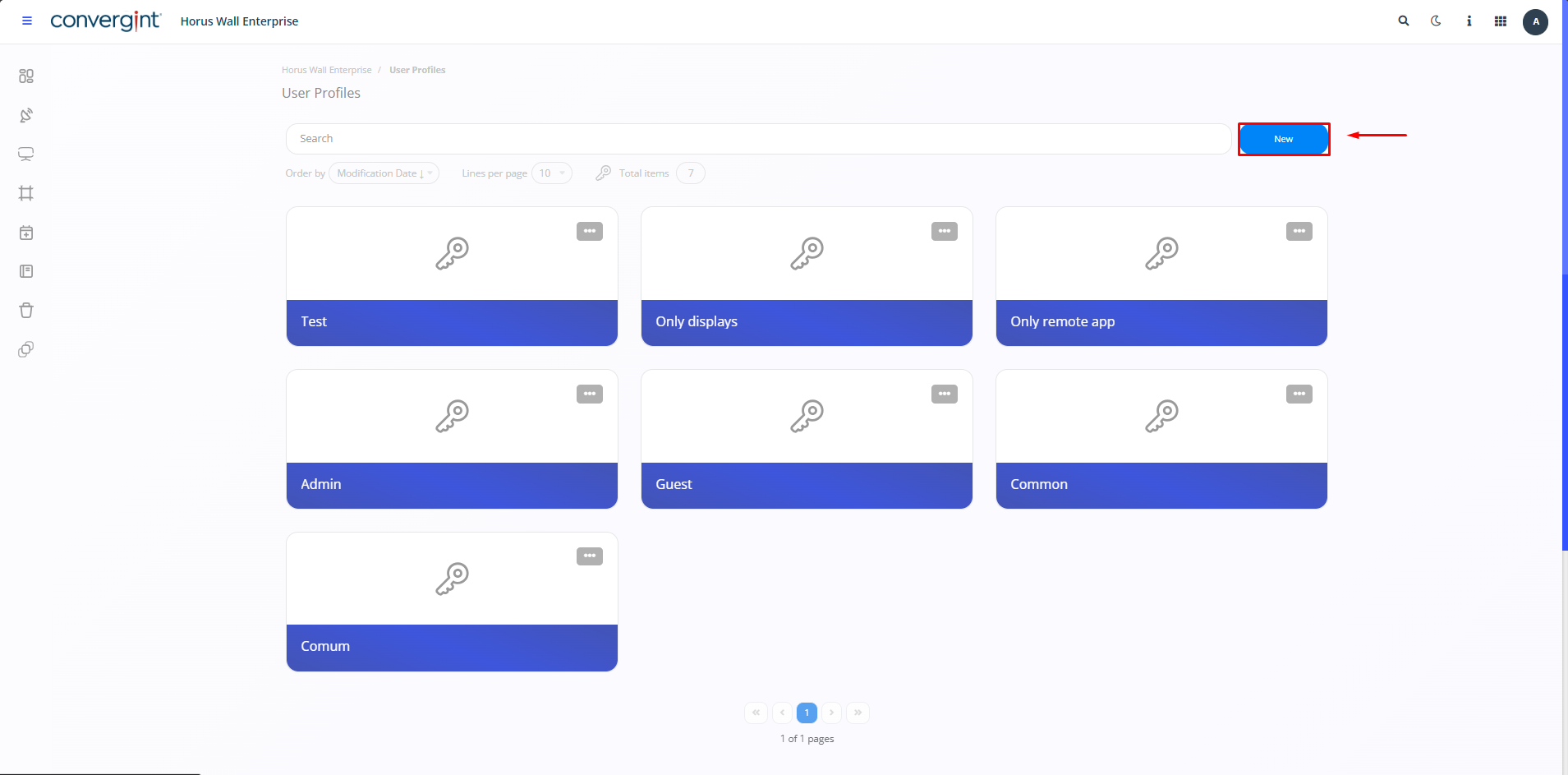
After clicking, the system will start the process of creating a user profile. To do this, click on “New”.
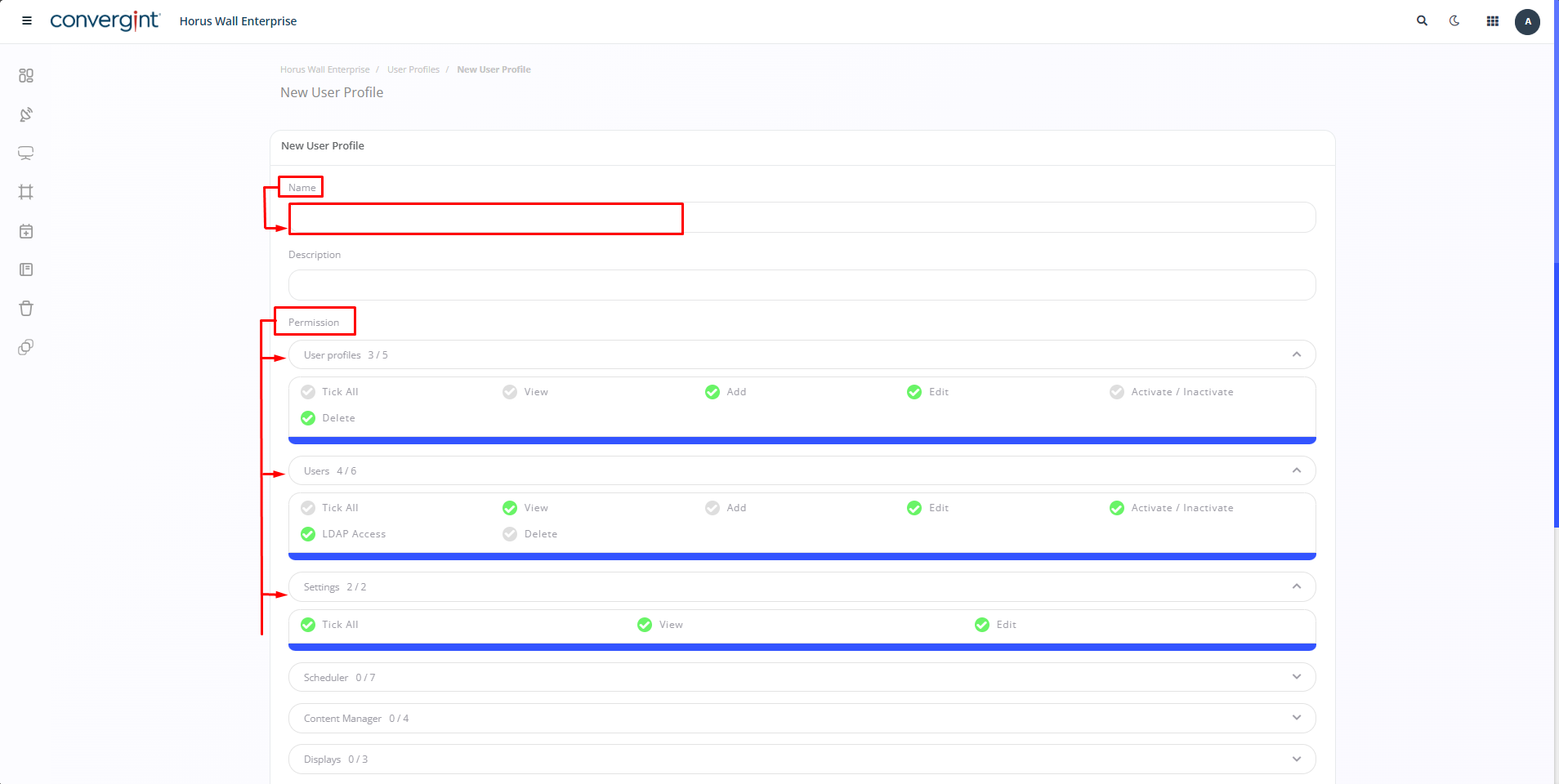
If you click on it, you will be able to create a User Profile according to your preference. Enter the name of the profile, provide a description (optional) to exemplify the new profile, assign the permissions you want the New User to have access to. Once you have filled in the permissions you want, click on “Register”.

observation:. When you access the “User Profiles” option, you'll notice that there are default profiles that make it easier to use the function.